iOS Revisited: UITableView

Hot

Post Top Ad

Showing posts with label UITableView. Show all posts

2 Aug 2017

Creating Youtube Home Feed using UITableView - Swift

8/02/2017 06:43:00 am 0


First create a new project -> open Xcode -> File -> New -> Project -> Single View Application, then tap next button. Type product name as Youtube HomeFeed then tap next and select the folder to save project.
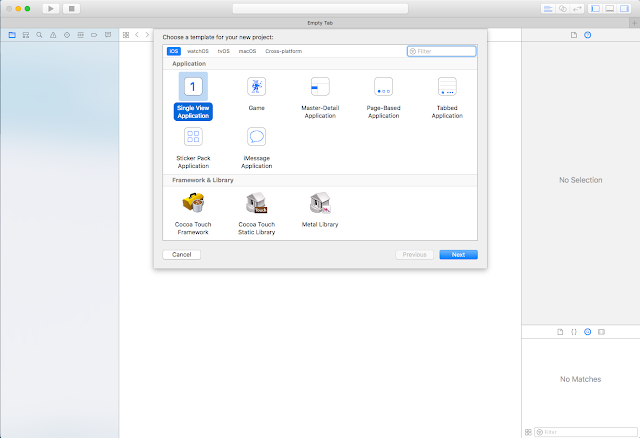
https://www.spandidos-publications.com/article_images/or/31/2/OR-31-02-0701-g00.jpg 


Open Main.Storyboard, Drag TableView on to the ViewController and give Autolayouts as mentioned in the following picture. Make sure to uncheck the 'Constraints to margins'. 


Then drag TableViewCell on to the TableView. Change cell row height to 250 in size inspector. Add ImageView to cell and add constraints as below image.


Add Label to cell and give horizontal spacing to imageView , trailing to container margin, and top to imageView. Change label text alignment to left and text color to dark gray.


Add one more imageView to cell and give leading , trailing, top to container margins and bottom space to thumbnail ImageView.
Create new swift file by tapping File -> New -> File -> Swift file and name it as 'CustomTableViewCell'. Remove all lines of code and add the following code.
import Foundation
import UIKit

class CustomTableViewCell: UITableViewCell {
    
    @IBOutlet weak var contentImageView: UIImageView!
    
    @IBOutlet weak var channelThumbnailView: UIImageView!
    
    @IBOutlet weak var titleLabel: UILabel!

}
Open Main.Storyboard, select TableViewCell from hierarchy of views then change class to 'CustomTableViewCell'.


Then open connection inspector and give the links to TableViewCell subviews.


Open ViewController.Swift and this line before viewDidLoad() method and give link in storyboard. Tap tableview and give links to delegate and datasource.

@IBOutlet weak var tableView: UITableView!

Great upto now evrthing is ok. UI part preety much done. The main thing is getting data. For getting data we are going to create model. So again create new class by tapping File -> New -> File -> Swift file and name it as 'DataModel'. Add the follwing code.
class DataModel {
    
    var originalImageName : String?
    var thumbnailImageName : String?
    var title : String?
    
    
    init(originalImage: String, thumbnailImage: String, titleStr: String ) {
        originalImageName = originalImage
        thumbnailImageName = thumbnailImage
        title = titleStr
    }
}
Open ViewController.Swift and add dataArray property before viewDidLoad() method. 

var dataArray = [DataModel]()
Inside viewdidLoad() add these lines of code for getting model.

let dataModel1 = DataModel.init(originalImage: "Image-1", thumbnailImage: "Thumbnail Image -1", titleStr: "The Avengers")
let dataModel2 = DataModel.init(originalImage: "Image-2", thumbnailImage: "Thumbnail Image -2", titleStr: "Iron Man 3")
let dataModel3 = DataModel.init(originalImage: "Image-3", thumbnailImage: "Thumbnail Image -3", titleStr: "Thor")
let dataModel4 = DataModel.init(originalImage: "Image-4", thumbnailImage: "Thumbnail Image -4", titleStr: "The Incredible Hulk")
let dataModel5 = DataModel.init(originalImage: "Image-5", thumbnailImage: "Thumbnail Image -5", titleStr: "Spider Man 3")
        
dataArray = [dataModel1 ,dataModel2, dataModel3, dataModel4, dataModel5]

Now it's time to add Tableview Delegate and DataSource methods at the bottom of ViewController.Swift class.
extension ViewController : UITableViewDelegate,UITableViewDataSource {
    
    func numberOfSections(in tableView: UITableView) -> Int {
        return 1;
    }
    
    func tableView(_ tableView: UITableView, numberOfRowsInSection section: Int) -> Int {
        return dataArray.count;
    }
    
    func tableView(_ tableView: UITableView, cellForRowAt indexPath: IndexPath) -> UITableViewCell {
        var cell = CustomTableViewCell()
        return cell
    }
}
Replace cellForRowAt method with the follwing code

 func tableView(_ tableView: UITableView, cellForRowAt indexPath: IndexPath) -> UITableViewCell {
        let cell = tableView.dequeueReusableCell(withIdentifier: "CustomCell", for: indexPath) as! CustomTableViewCell
         let data = dataArray[indexPath.row]
        cell.contentImageView.image = UIImage(named: data.originalImageName!)
        cell.contentImageView.contentMode = .scaleAspectFill
        cell.contentImageView.clipsToBounds = true
        cell.channelThumbnailView.image = UIImage(named: data.thumbnailImageName!)
        cell.channelThumbnailView.contentMode = .scaleAspectFill
        cell.channelThumbnailView.clipsToBounds = true
        cell.channelThumbnailView.layer.cornerRadius = 25
        cell.titleLabel.text = data.title!
        return cell
    }
    
    func tableView(_ tableView: UITableView, heightForRowAt indexPath: IndexPath) -> CGFloat {
        return 300
    }


Build and run the app, you will see our super heros on our devices.

Download sample project with examples :

Read More

1 Aug 2017

Real Time Camera Object Detection with Machine Learning - CoreML: Swift 4

8/01/2017 04:05:00 am 1
This iOS machine learning tutorial will introduce you to Core ML and Vision, two brand-new frameworks introduced in iOS 11. For this we need Xcode 9 or greater, iOS 11 or greater.


Getting Started:

First create a new project -> open Xcode -> File -> New -> Project -> Single View Application, then tap next button. Type product name as 'Object Detector' then tap next and select the folder to save project.

For detecting objects we need to access device camera. Open ViewController.swift and import this framework, just below 'import UIKit'.

import AVKit
Now its time to write some code, open ViewController.swift and inside viewDidLoad() method write the following code to access camera.

 let captureSession = AVCaptureSession()
 captureSession.sessionPreset = .photo
 guard let captureDevice = AVCaptureDevice.default(for: .video) else {
      return
 }
 guard let input = try? AVCaptureDeviceInput(device: captureDevice) else {
      return
 }
 captureSession.addInput(input)
 captureSession.startRunning()
Build and run, Ouchh app crashes. No worries we need to add cameraUsageDescription in info.plist. Open info.plist add 'Privacy - Camera Usage Description' and description as 'We need to access camera for detecting objects'.

 
Now build and run. Great we see camera permission alert then tap ok.


We need to add camera to the view for that create 'PreviewLayer' as the following. Add these lines of code after 'captureSession.startRunning()' line in viewDidLoad().

let previewLayer = AVCaptureVideoPreviewLayer(session: captureSession)
view.layer.addSublayer(previewLayer)
previewLayer.frame = view.frame
Build and run , now you can see camera running on your device.

Great, now for detecting object we need image containg object for that we need to get frames from the camera. So use the following code at the end of viewDidLoad().

let dataOutput = AVCaptureVideoDataOutput()
dataOutput.setSampleBufferDelegate(self, queue: DispatchQueue(label: "videoQueue"))
captureSession.addOutput(dataOutput)
Add 'AVCaptureVideoDataOutputSampleBufferDelegate' delgate to the ViewController.swift class.

class ViewController: UIViewController, AVCaptureVideoDataOutputSampleBufferDelegate {
.....
}
 Add delegate method, it will call every time when camera is going to capture a frame.

func captureOutput(_ output: AVCaptureOutput, didOutput sampleBuffer: CMSampleBuffer, from connection: AVCaptureConnection) {

}
Now it's time to start using 'Machine Learning'. Open ViewController.swift and import this framework, just below 'import AVKit'.

import Vision
Go to this url 'https://developer.apple.com/machine-learning/' and download Resnet50 file. Drag that ML file to our project.

Add the following code inside delegate method.

guard let pixelBuffer : CVPixelBuffer = CMSampleBufferGetImageBuffer(sampleBuffer) else {
return }

guard let model = try? VNCoreMLModel(for: Resnet50().model) else {
return }
let request = VNCoreMLRequest(model: model) { (finishedReq, error) in
print("results ==",finishedReq.results)
}

try? VNImageRequestHandler(cvPixelBuffer: pixelBuffer, options: [:]).perform([request])
VNImageRequestHandler will perform all operation on image using VNCoreMLRequest.

VNCoreMLRequest accepts a VNCoreMLModel, here our model is Resnet50 model.

Build and Run, you will see the output in console with VNClassificationObservation objects.


Great we are getting some data. Lets parse the data using following code.
Replace 'print("results ==",finishedReq.results)' with the code below.


guard let results = finishedReq.results as? [VNClassificationObservation] else {
return
}

guard let firstObservation = results.first else {
return
}

print(firstObservation.identifier, firstObservation.confidence)
Build and Run the project we will see detected objects with confidence in console.


Download sample project with examples :

Read More

Post Top Ad